
The single most important skill in Samsung firmware work is matching a firmware file to the exact phone in your hand, and that is where frija earns its reputation. Samsung does not release one universal file for every phone; it releases separate packages for each model, each region, and each carrier configuration. Download the wrong one and you may lose carrier features, gain the wrong language set, or in the worst case fail to boot. The good news is that finding the right combination is mostly a matter of reading three codes correctly and letting the tool check them against Samsung’s servers before anything is downloaded.
Start With the Model Number
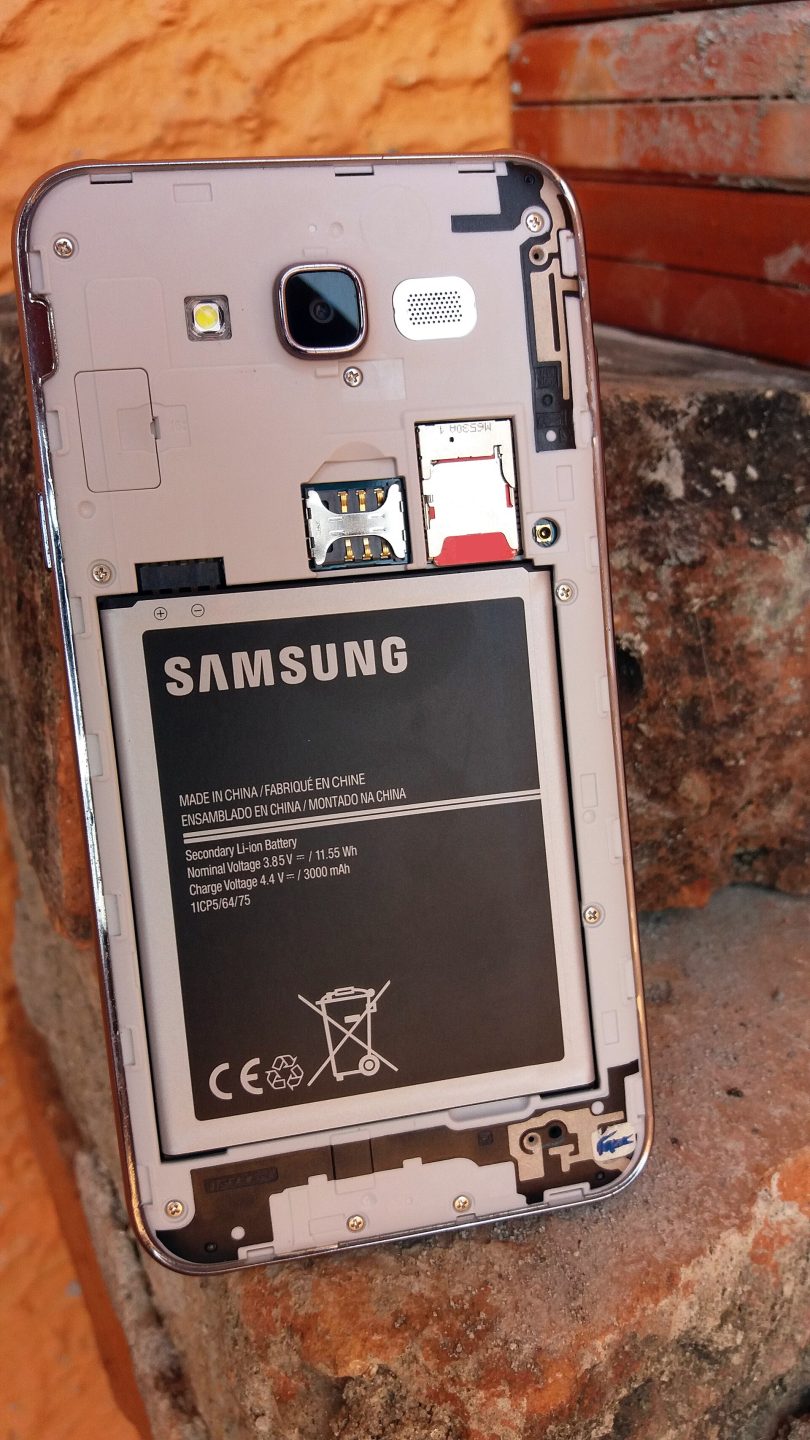
Every Samsung phone has a model number such as SM-G991B or SM-A546E, printed in Settings under About Phone and often on a label under the battery or on the original box. This code tells you the exact hardware variant, including which processor and modem it uses, and firmware built for one model will not work correctly on another, even if the phones look identical. Write the model number down exactly, including every letter, because a single wrong character can point you to a different device family. If your phone was bought from a carrier, also note the carrier branding, since carrier models sometimes carry their own firmware branch with extra apps and network settings.
Understanding the CSC Code
CSC stands for Country Specific Code, though in practice it covers both country and carrier. It determines which languages, carrier apps, network settings, and update schedules your phone follows. Two phones with the same model number but different CSC codes can receive updates weeks apart and behave differently on local networks. You can find your CSC in the phone’s software information or through dialer service menus, depending on the model, and many guides list the common codes by country. When you enter a CSC into a downloader, you are asking Samsung for the package built for that exact market, which is why getting this code right matters as much as the model number itself.
Auto Mode: Letting the Tool Detect Your Phone
One convenient option is to connect the phone to your computer and let the tool read the model and CSC directly from the device. This removes typing errors and is especially useful when you are unsure which code applies, for example with a second-hand phone that may have been flashed before. Auto detection reads the values the phone currently reports, so it reflects the configuration actually on the device rather than the one printed on the box. That said, auto detection is only as good as the phone’s current state: if a previous owner changed the CSC, the tool will report the changed value, so cross-check it against the region where you actually use the phone before downloading.
Manual Mode: When You Know Exactly What You Want
Manual mode is for users who already know their model and CSC and want to request a specific combination, perhaps to get firmware from a region that received an update earlier. Here you type both codes yourself, and the tool queries Samsung’s servers for the latest package matching them. Manual entry gives you control, but it also gives you room for typos, so double-check each code character by character before starting a multi-gigabyte download. A useful habit is to compare the result the tool shows — Android version, build number, and file size — against what you expected, and to stop if anything looks unfamiliar rather than hoping it will work out during installation.
Reading the Result Before You Download
Before you press download, the tool typically shows the firmware version, the PDA and CSC components, and the size of the package. The PDA part identifies the main software build, while the CSC part identifies the regional configuration bundled with it. If you are updating, the new build should be newer than the one currently on your phone, which you can compare by build date or version string. If the tool reports no firmware for your combination, do not guess a different CSC at random; instead, verify your codes again, check whether your model uses a different naming scheme, or look for guidance specific to your device, because a forced mismatch is how most avoidable problems begin.
Double-Checking With a Second Source
When you are unsure about a code, a second source of confirmation can save a wasted download. Compare the model number on the phone’s software screen with the label on the device or its original packaging, and compare the CSC with the region where you bought and use the phone. Carrier support pages and Samsung’s own community forums often list which CSC codes belong to which markets, and a quick search for your exact model plus the suspected code will usually reveal whether that combination is real or a mistyped guess. If two sources disagree, trust the phone’s own software information over a forum post, but investigate the disagreement rather than picking the answer you prefer. This extra five minutes is especially valuable for imported phones, where the box, the software, and the seller’s description may each tell a slightly different story about where the device was meant to be used.
Finding the right firmware is less about technical skill and more about careful reading: model number, CSC code, and a result that matches both. Tools like the one available at frija.org make the checking step easy by querying Samsung’s own servers, but the responsibility for entering correct codes stays with you. Take five minutes to confirm your details, compare the reported build with your expectations, and only then start the download. That small discipline is what separates a smooth update from a long evening of troubleshooting, and it applies whether you are updating one personal phone or maintaining a whole shelf of Samsung devices.